
Image to image
Seedream 5.5 Image to Image
Upload one photo and turn it into a Seedream 5.5 image at 1K or 2K. No ComfyUI install and no API key: Seedream 5.5 image to image runs in your browser. Starting from a prompt instead? Use the Seedream 5.5 image generator for text to image.
Sign up with Google to get free trial credits. No card required.
≈ 10 credits for this image
Credits are used only when an image is generated. If generation fails, they're returned automatically.
Use only content you have the right to submit. Review the Terms, including Acceptable Use, and report safety or abuse issues.
Task
Generation status
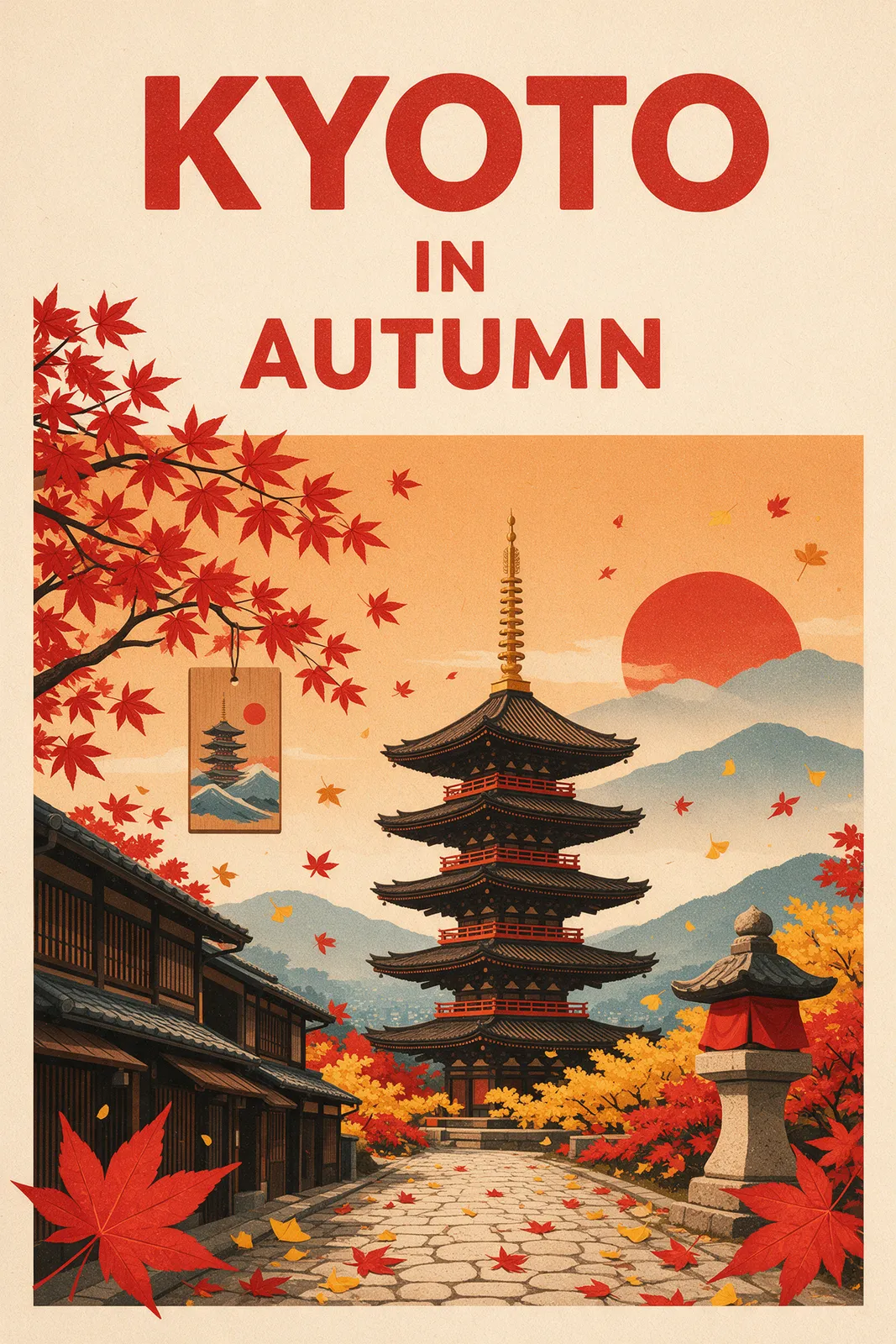
Before you start
- 1Name the subject, the style and the composition, e.g. "wide shot".
- 2Say where the light comes from and the mood you want.
- 3For image to image, describe only what should change in the photo.
Every generated image is a PNG. To steer style, lighting or composition, describe them in your prompt, e.g. “soft studio light, shallow depth of field”. If you leave it out, the model picks them itself.
How it works
How Seedream 5.5 Image to Image Works
1Your images are the reference
Image to image starts from a picture instead of a blank page. You give the model a reference image, and it predicts how that exact scene would change: the subject, the composition, the light, and the style. Because the reference image is fixed, the result keeps the look of your image far more closely than an image generated from words alone. That makes it the right mode when you already have the picture you want, such as a product photo, a character portrait, a landscape, or a piece of concept art, and you need it reworked.
2Your prompt directs the change
Your prompt then tells the model what changes. A good image-to-image prompt reads like art direction: what changes first, how the framing shifts, how the light looks, and what the scene feels like. If you upload more reference images (up to 10), the model blends them in, which is useful for combinations, outfits, products, and before-and-after looks. The model returns a finished PNG image, so you get a usable draft right away.
3One generator, two starting points
This page and the Seedream 5.5 image generator on the home page share the same generator. The difference is where you start. Here, the starting point is your image; on the home page, the starting point is a written prompt.
3 steps
How to Turn a Photo into an Image in 3 Steps
- 01
Upload reference image 1
Choose image to image in the generator and upload a JPEG, PNG, or WebP image of up to 5 MB. This picture becomes the base of your image, so pick one that already has the subject, lighting, and composition you want. If you have more pictures to blend in, add them too, up to 10 in total.
- 02
Describe the change
Write a prompt that explains what should happen to your reference images: how the subject changes, how the framing changes, and how the scene changes. You do not need to re-describe everything in the picture. Focus on the change, style, and mood. Prompts can be up to 5,000 characters.
- 03
Pick resolution, then generate
Choose 1K or 2K. Credits are reserved when you start, the task moves from queued to processing to succeeded, and the finished PNG image appears in your account. If the task fails, the reserved credits are released.
Settings
Seedream 5.5 Image to Image Settings
The controls are deliberately short. Each one maps directly to a field the model accepts, so what you set is what the model receives.
- Reference images
- At least one, up to 10. JPEG, PNG, or WebP, up to 5 MB each. The image starts from these pictures, in the order you add them.
- More references
- Optional. Add up to 9 more images when you want the result to blend in specific pictures.
- Prompt
- Up to 5,000 characters describing the change, style, and atmosphere.
- Aspect ratio
- Offered in both modes: 1:1, 4:3, 3:4, 16:9, 9:16, 2:3, 3:2, or 21:9.
- Resolution
- 1K for quick drafts, 2K for the sharpest result. 2K costs more credits (16 instead of 10).
- Output
- Every Seedream 5.5 image is delivered as a PNG.
TipPick the aspect ratio you want for the result, and keep the subject in your source pictures clear and well lit. Images with one obvious subject and some empty space around it usually give the model the most room to create a natural result.
Prompt ideas
Prompt Examples for Image to Image
Describe the change, style, and light rather than repeating what is already in the picture. These examples show the pattern; replace the details with your own scene.
“Keep the bottle, add condensation running down the glass, soft studio light from the left, shallow depth of field, calm pale background.”
“She turns her head toward the window and smiles, wind moves her hair, framing slightly to the right, warm afternoon light, quiet city street outside.”
“Clouds sit low over the mountains, the lake surface ripples, a wide high view reveals the whole valley, birds in the distance.”
“The lanterns glow on one by one, light snow falls, the view looks down the street, warm festival colors.”
TipA few habits help: name one main change per image, say how the framing looks (close-up, wide, overhead, static), describe the style, and mention the light you expect. If the first result changes too much, shorten the prompt and remove extra changes. If it changes too little, add a clear verb and a framing direction.
Which mode
Image to Image or Text to Image?
Image to image
Use image to image when the look has to stay exactly right: a real product, a character you have already designed, a brand visual, or a photo you took yourself. Your first reference image anchors the result, and more reference images (up to 10) let you blend in other looks.
Text to image
Use text to image when you are still exploring ideas and do not have a picture yet. You describe the whole scene in words, pick one of eight aspect ratios (1:1, 4:3, 3:4, 16:9, 9:16, 2:3, 3:2, or 21:9), and let the model compose the image. Both modes share the same resolutions, PNG output, and credit pricing, so you can switch between them freely. Text to image is available in the Seedream 5.5 image generator.
FAQ
Seedream 5.5 Image to Image FAQ
Pricing for credit packs and plans is on the pricing page, and the full list of supported controls is on the features page. For what ByteDance has confirmed about the next version, see the Seedream 5.5 release date tracker.
Is Seedream 5.5 image to image free?
Accounts created with Google sign-in receive free trial credits, so you can try image to image before buying anything. Email sign-ups do not include free credits. Free generations have a daily cap. After that, generation uses credits from a plan or credit pack, charged per image.
What sizes can an image-to-image result be?
1K or 2K. You choose the resolution before you generate, and 2K images use more credits.
What format is the output?
PNG. Seedream 5.5 delivers each finished image as a PNG file.
Do I need ComfyUI, a GPU, or an API key?
No. Everything runs in your browser on this site. There is nothing to install and no API key to manage.
What images can I upload?
JPEG, PNG, or WebP files up to 5 MB each, for up to 10 reference images. Only upload images you own or have rights to. Sexual content, minors, and a real person’s likeness without their consent are not allowed, and prompts and uploads are screened automatically.
What happens to my credits if a generation fails?
Credits are reserved before the task is sent and settled on the server once the image is generated. If the task fails, the reserved credits are released back to your balance. An image that is generated but blocked by our final safety check is still charged; eligible images can be submitted for manual review within 7 days.
Edit your photo
Upload one image, describe the change, and get a 1K or 2K image.